Update availableA new version of the sales app is ready ().
What would you like to create?
Search & Filter
Active quotes and verbal sales awaiting a Purchase Order. Click a row to show line items and delivery address; double-click for version history.
QUOTE sent proposal
AWAITING PO verbal agreement, PO not yet received
Number
Doc
Customer
Date
Status
Total
Rep
Actions
⚠ Awaiting Purchase Order 0 verbal sales
▼
📄 Open Quotes 0 quotes
▼
Open orders
Confirmed orders with a Purchase Order — not yet marked Dispatched. Click a row to show line items and delivery address.
Order Number
Doc
Customer
Date
PO Number
Workshop
Customer 'ETA'
Workshop (Est. Delivery)
Shipped
Total
Rep
Actions
Dispatched
Orders marked Dispatched in Workshop. Click a row to show line items and shipping address (read-only); double-click for version history.
Order Number
Doc
Customer
Date
PO Number
Workshop
Customer 'ETA'
Workshop (Est. Delivery)
Shipped
Total
Actions
History
Historical records imported from the previous system. LEGACY Read-only — click any row to expand full details.
Quote / Ref
Customer
Date
Total
Rep
Source
Select History to load records.
Click Dispatch to load orders.
Click Deliveries Inbound to load supplier deliveries.
Click Supplier Orders to load.
Purchase Orders
Load Supplier Orders to use purchase orders.
SNAP SHOT ONLY, OF ALL IN/OUT | Workshop/Sales
Click ONESHEET to load snapshot.
Click Accounts export to load orders.
ADMIN SETTINGS
System Configuration
Quote Settings
Quote Prefix
Next Quote Number
Sequence Start
System Settings
VAT Rate (%)
Lock Timeout (minutes)
History Retention (days)
Cache Refresh (minutes)
Payment Terms
Pack Templates
Loading...
Actions
USER LOGS
High-risk activity on this system
Shows deletes, settings changes, major order updates, and workshop stock adjusts. Newest first (max 200 loaded).
Filter
0 shown
Activity
When
User
Action
Quote / Doc
Summary
Unlock User Logs to load.
SALES QUOTE
Resquip - Sales Department
Quote Number
Date
Customer
Contact Person
Email
Billing Address
Billing Postcode / ZIP
Shipping Address
Shipping Postcode / ZIP
Sales Rep
Expiry Date
Document currency:
LINE ITEMS SECTION
Line Items
SKU
Select
Product Name
Qty
Unit Price
Discount %
Line Total
Subtotal:
£0.00
Shipping:
VAT (20%):
£0.00
TOTAL:
£0.00
Payment Terms
Notes
Please review this quote and contact us with any questions.
Revert Sale to Quote
Are you sure you want to revert back to a quote?
This will:
Change status from 'sale' to 'quote'
Keep the Q-RESQ document number unchanged
Keep purchase order number intact
This action cannot be undone.
Unsaved Changes
You have unsaved changes to this quote.
What would you like to do?
Open external app?
Login Required
or
Use your work email address.
Loading...
Select Customer
Select a customer:
Select Addresses
Select Product
📝 Drafts
⚠️ Important: Drafts are stored in your browser's local storage. They will be lost if you clear your browser data or switch browsers. Drafts older than 7 days are automatically deleted.
✅
Success!
Document saved successfully.
Version History
💡 How to use Version History:
• View: Click "View" to see full quote details including line items
• Restore: Click "Restore" to load a previous version into the form for editing
• Delete: Click "Delete" to remove specific history versions (non-current only)
• Restoring creates a NEW version - it does not delete or override existing versions
Quote Preview
Purchase Order Number
Remove Purchase Order Number
Are you sure you want to remove the purchase order number for ?
This action cannot be undone.
Remove from job list?
Remove this order from the workshop job list?
This hides the job from the list (it is not permanently deleted). Use Show deleted to see it again. This does not undo a print or email.
Delete Document
Permanently delete ?
⚠ This will delete the document and all its version history. This cannot be undone.
Convert Quote to Sale
Convert to a confirmed sale?
This will:
Change status to 'sale'
Keep the Q-RESQ document number unchanged
Move the record toward Orders (with PO) / Awaiting PO
Postcode required
A Postcode / ZIP is required before this can be saved or confirmed as a sale.
Add the missing Postcode / ZIP on the quote form, then try again.
Keep the Q-RESQ number for the life of the document
When a PO is saved it is confirmed as an Order (same Q-RESQ number)
Use Revert if the verbal agreement is retracted.
📤 Send / Export
📄 PDF Preview & Download
Opens a styled document preview in a new window. Use Ctrl+P → Save as PDF to download.
🖨 Print / send to printer
Opens a print preview. Choose your workshop or department printer (or Save as PDF).
✉ Gmail draft
Preview the document, then confirm to save a Gmail draft with a PDF attachment (built in your browser with pdfmake — no separate server).
No contact email on this document. Add an email on the quote before creating a draft.
Draft saved in Gmail
📄 ONESHEET preview
🖨 Print
Opens a print preview in a new window. Choose your printer or Save as PDF.
💾 Export CSV
Download the filtered rows shown above as a CSV file.
📊 Excel / Google Sheets
Same CSV file — open in Excel, or in Google Sheets use File → Import.
✉ Packing List — Email
📄 Print packing list
Opens a print-ready preview of the current packing list (or delivery label) in a new window. Use Ctrl+P / your printer, or Save as PDF.
✉ Email (optional)
Creates a Gmail draft with an HTML packing list attached. Prefer print for shop-floor copies.
No contact email on this order. Enter a To address above.
Draft saved in Gmail
Order Confirmation
Print / PDF preview
Opens the Order Confirmation document in a new window. Use Ctrl+P → Save as PDF to download or print.
Gmail draft
Preview the Order Confirmation, then confirm to save a Gmail draft with a PDF attachment (built in your browser with pdfmake).
No contact email on this order. Enter a To address above.
Draft saved in Gmail
Delivery rates
Rates come from Couriers live | *advisory Only + Non Pallet Freight only
Defaults to UK → UK. Changing route updates destination country; order postcode is kept.
Ship from
ShipStation uses ISO country GB for UK. Save updates the selected origin, or creates a new one after New.
Ship to
Filled from the order delivery address when available. Pale fields need a manual entry.
Parcel
Weight only is required for live rate estimates. Box size is not needed here (used later for labels).
Results
Delivery Label
Label is for the label printer. Packing list is the line items (no prices) for a normal printer — each Print opens its own dialog so you can choose a different printer.
Delivery label
Loading delivery label…
Packing list
Loading packing list…
Pick / build sheet
Loading pick sheet…
📦 Packing List
Document
Send
Actions
Courier — Coming soon
Administration
Loading packing list...
Split delivery
How many of each line go on this packing list? Leftovers stay on the order and show next time you open it. Saving does not change Ready / Dispatched.
Packing lists history
Saved packing lists for this order. View to reprint, Edit to fix quantities, Delete to undo a save.
⚙ Packing List — Exporter Settings
These details appear in the Exporter section of every packing list. Changes are saved globally.
Add non-stock row
Use this for promo or non-stock items that should appear on the packing sheet
(for example free samples or literature).
These lines are not saved to the order, stock, or packing history.
They only appear on this packing list until you close it (including print / email from this session).
SnapShot — all reports
All reports: This export includes every selected SnapShot section. Global and section filters apply. Totals may be hidden unless unlocked.
Print
Opens a professional print preview with a cover page listing who printed it, the period, and included reports.
Export CSV
Combined CSV includes cover metadata rows at the top. Separate downloads one CSV per report.
Excel / Google Sheets
Same CSV file — open in Excel, or in Google Sheets use File → Import.
Snap-Shot
Choose where to open this order.
ONESHEET password
Enter the password to view totals or export all data.
Incorrect password. Please try again.
Insert Custom Row
✅ Safe Zones: You can insert rows in customer information or notes areas. ❌ Protected Zones: Line items and totals sections are protected to maintain calculation integrity.
Workshop — On Hold
Set details for the hold period. This updates the main order record.
Edit shipping address
Updates this order only. Not available once status is Dispatched.
Select Existing Address, or type in manually.
This is a one-time address for this order. To add or update an address permanently, use
ContactQ.
Allocate Stock
Loading stock…
View Order
Loading order…
Stock allocation required
×
This order is now Processing.
Please allocate stock for each line item.
Un-allocate stock first
×
This order still has allocated stock.
Un-allocate it before clearing workshop status.
Open orders — not on workshop schedule
×
Confirmed orders with a PO that have no workshop status yet. Set to Accepted or Processing to add them to the workshop queue.
0 orders
Order
Customer
Date
PO Number
Total
Workshop
Workshop notes
×
Internal notes for this order. Not shown on the customer quote.
Mark parts reordered
×
How Mark reordered works
×
Use this after you place a supplier order. It only tracks what you still need to reorder — it does not change stock-api or Postgres.
1 See what you used → 2 Order from supplier → 3 Mark what you bought
Parts used shows qty used on Ready + Dispatched builds, and how much is still to reorder.
Place your supplier order as normal (outside this app).
Click Mark reordered, confirm quantities (lower them if you only ordered part of a line), then Save.
Need to reverse a mistake? Use Undo last mark.
Schedule Dates
×
📦 Stock Levels
×
Fetching inventory...
Available
—
Allocated
—
WIP
—
On Order
—
Sign Off — Inbound Delivery
Update Stock Levels?
This will add the received quantities to the stock item's totals. This action cannot be undone.
Confirm
Notice
Print inbound checklist
Paper form for warehouse staff to record received quantities. Check off in the system when goods arrive.
0 rows will print
Preview — rows on the printed checklist
Print outbound checklist
Paper form for dispatch checks — confirm orders, items, and leave dates before updating the system.
0 rows will print
Preview — rows on the printed checklist
Workshop stock adjust
×
Enter the workshop password to adjust stock levels in Postgres.
Warning: changes you make here affect true stock levels.
Incorrect password. Please try again.
📦 Adjust stock
×
Loading current stock…
Available
—
Allocated
—
WIP
—
On Order
—
Updates Postgres stock at source. On Order may be recalculated when purchase orders change.
Warning: these changes affect true stock levels in Postgres.
Un-allocate stock
×
Create purchase order
×
PO number is taken from Stock Admin settings on save.
Next PO:—
—
—
—
— —
VAT:Rate: 20%
Total (ex VAT)£0.00
VAT£0.00
Total£0.00
Create POs from parts used
×
Grouped by supplier from stock records. One PO per line is created (stock system model). Creating selected POs also marks those quantities as reordered in Parts used. Chemical and assembly lines must be ordered in the Stock app.
Edit purchase order
×
—
VAT:Rate: %
Total (ex VAT)£0.00
VAT£0.00
Total£0.00
Delete Purchase Order
×
Also delete the linked dispatch note?
Add Pack to Quote
×
Select a pack to expand into line items. You can edit prices and quantities after adding.
Loading packs...
Missing postcodes
×
Enter the admin password to open the missing postcode tool.
Incorrect password. Please try again.
Admin Settings
×
Enter the admin password to access settings.
Incorrect password. Please try again.
Delete activity logs
×
Enter the admin password to enable deleting activity log entries from Firestore.
Incorrect password. Please try again.
User Logs
×
Enter the password to view activity logs.
Incorrect password. Please try again.
Add New Pack
×
SKU
Name
Qty
Price (£)
No items added yet
Price 0 = use product default at time of quoting
Workshop Manager Manual
×
Shop-floor and manager tools on the quote list. Open this any time from the sidebar (Workshop Manager Manual). Accounts export help is section 8 below (also opened from Accounts export Manual). After a site update, use section 9 to hard-refresh so you get the latest files.
Horse / Cow / Dog Colour when the order needs a mannequin colour map.
2. Picking & packing
Use Picking List from the burger for the pick / build sheet (print or email). Use Packing List for dispatch packing.
3. Delivery labels
From the burger, open Delivery Label. Delivery notes (when set) print on labels.
4. Workshop dropdown (Orders)
Accepted → Processing → On Hold → Ready to dispatch (waiting to leave) → Dispatched (gone) → Cancelled.
5. Workshop tab
Same quote list, tab Workshop.
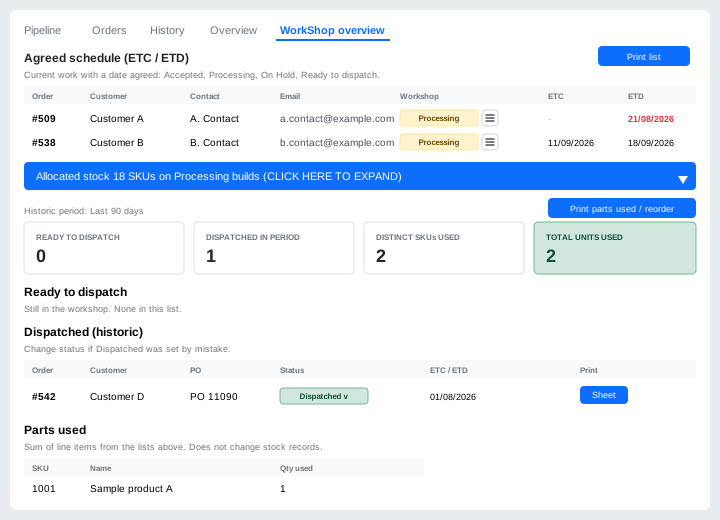
Workshop schedule — Accepted, Processing, On Hold, Ready (click column headers to sort Order / ETC / ETD). Print list / Email available. Job icon opens the job card. Click a row for line items, contact, and address.
Allocated stock — expand for SKUs committed on in-play builds (Postgres allocate).
Workshop: schedule board and allocated stock.
5b. Supplier Orders tab
Parts used (Qty used · Already reordered · Still to reorder) and Purchase Orders. Mark reordered after you place a supplier order; Create POs from parts used when ready.
1 See what you used → 2 Order from supplier → 3 Mark what you bought.
6. Dispatch
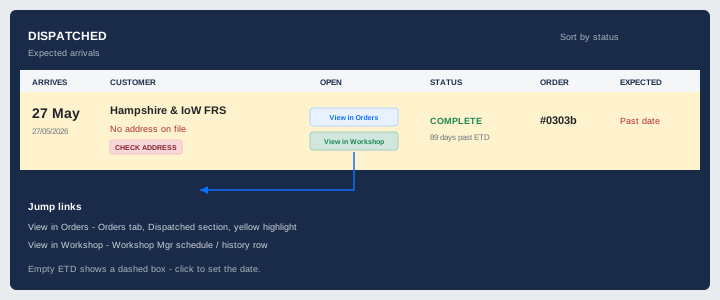
Ready and Dispatched orders with ETD, journey status, and address warnings. Empty ETD shows a dashed box — click to set.
On each Dispatched board row, View in Orders / View in Workshop jump to that order and highlight the row.
Dispatch board: Open column links into Orders or Workshop.
7. Send email (Actions burger)
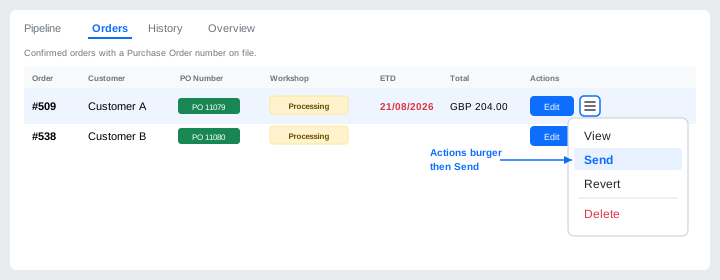
The burger next to Edit on the row — not the Workshop burger. Open Send for PDF preview / Gmail draft.
Row Actions: View, Send, Revert, Delete.
8. Accounts export (Xero)
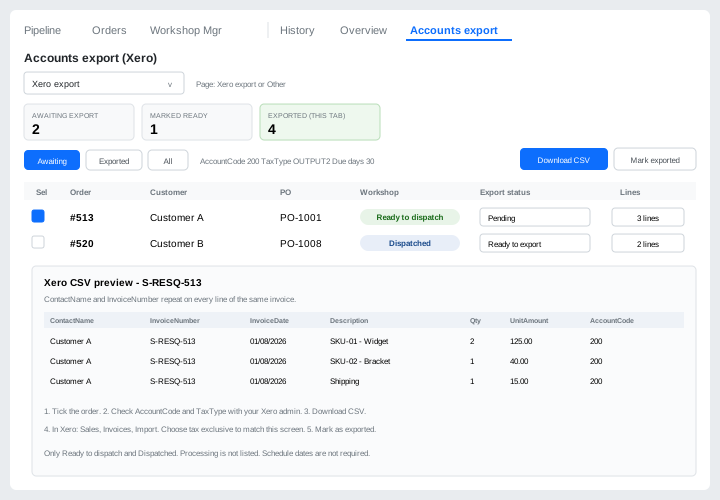
Right-hand tab Accounts export.
Lists orders whose Workshop status is Ready to dispatch or Dispatched only.
Paste Default AccountCode and Default TaxType exactly as in Xero (browser only).
Tick orders. Use Lines to preview CSV rows. Shipping is its own line when present.
Download CSV, then optionally mark as exported. In Xero: Sales → Invoices → Import (match tax exclusive/inclusive).
Reset to awaiting only if marked by mistake before the invoice is in Xero — this does not change Xero.
Contact names should match Xero. Invoice numbers must be unique. Dates are DD/MM/YYYY for UK orgs.
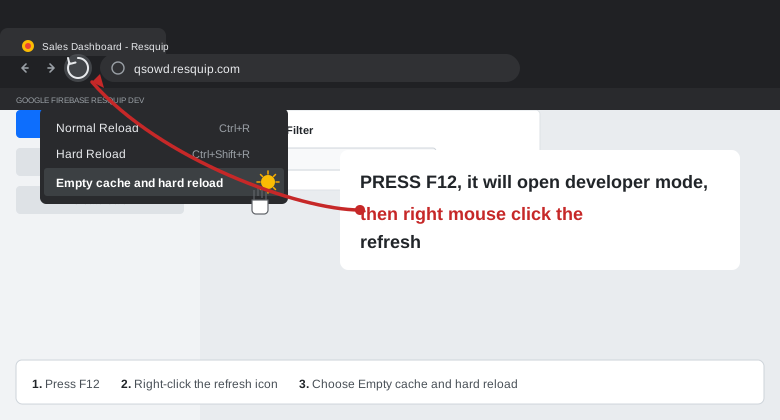
When new workshop or accounts features are uploaded, your browser may keep an old cached copy. Use a hard refresh so you load the latest scripts and styles.
Press F12 to open Developer Tools (must stay open for the next step).
Right-click the circular refresh icon in the address bar (left of the URL).
Choose Empty cache and hard reload.
You can then close Developer Tools (F12 again, or the ×).
On a Mac use Cmd+Option+I instead of F12 if needed. A normal refresh (F5 / Ctrl+R) is often not enough after a deploy.
Chrome with DevTools open: right-click refresh → Empty cache and hard reload.
Mannequin Colour
Select Mannequin Colours
Horse Colour
Please select your Mannequin Colours
Use Choose Preset on the left, or tap parts of the horse to set colours. Save to Order when done.
Choose Colour
Custom / Special Colour
Choose Pattern / Colour Preset
Save Combination
Save the current horse colours. You can reload them later from Choose Preset → My Saved.
Save horse colour?
Continue to save this colour design to the order, or Cancel to keep editing.